

Home and Travel Wi-Fi Security: The Settings That Actually Matter
Most home Wi-Fi advice is either scary or useless. Hide your network name. Buy a VPN. Put a dollar sign in your password.
The real list is shorter and more boring. A handful of router settings do almost all of the work, and a few habits cover the rest when you travel. None of it asks you to understand radios, and all of it tracks the published guidance from the FTC, CISA, the NSA, the FCC, and the Wi-Fi Alliance.
Before the checklist, here is the thing worth seeing. Wi-Fi is a broadcast. Everything your device sends goes out over the air, and anyone in range with a receiver hears it, not just your router. What they can actually read is the only thing that changes. Flip between an open network, WPA2, and WPA3 below and watch the same login go from plain text to noise.
That is the whole argument for the settings below.
Six changes on the router
Change the router’s admin login. Your router has two separate logins: the Wi-Fi passphrase your devices use, and the administrator account that controls the router itself. The admin password is the one an attacker looks up by model number. Change it first. If someone reaches the admin side, they can undo everything else you do.
Use WPA3, or WPA2-AES, with a long passphrase. Set the encryption to WPA3-Personal, or WPA2-Personal (AES) if WPA3 is not offered. Never use WEP or WPA/TKIP. If those are your only choices, the router is old enough to replace. For the passphrase, a short sentence beats a short complex string.
Turn off WPS. WPS is the “type a PIN to connect” shortcut. The eight-digit PIN is brute-forceable in hours no matter how strong your passphrase is. A network with a long, random, uncrackable password can still fall in an afternoon, because WPS hands that password to anyone who guesses the PIN. Disabling it is the only real fix.
Keep the firmware updated, and retire routers that no longer get patches. A router the manufacturer has stopped updating is a standing risk, no matter how well you configure it.
Turn off remote administration and UPnP unless you actually use them. Both widen the attack surface from the internet side.
Consider who makes the router, not just how it is set up. In 2026 the federal government began treating the router itself as a supply-chain risk. Acting on a March 2026 national-security determination, the FCC added all consumer routers, Wi-Fi extenders, and mesh systems built in a foreign country to its Covered List: new foreign-made models can no longer be authorized for sale in the United States, with an import cutoff following in September 2026. It built on narrower steps already in force. For years the FCC has blocked new US sales of network gear from specific Chinese firms such as Huawei and ZTE, and in late 2025 the Commerce Department proposed barring TP-Link, the most common home-router brand in the country, a move backed by the Departments of Homeland Security, Justice, and Defense. The reason is concrete rather than theoretical: a router is only as trustworthy as whoever controls its firmware, China’s 2017 National Intelligence Law obligates Chinese companies to assist state intelligence on request, and TP-Link routers have already been hijacked at scale in Chinese state-linked attacks. Devices you already own are not restricted, so there is no need to unplug a router that works. But it changes what to buy next: favor a router that is not built in a country flagged as an adversary, from a maker with a real record of shipping security patches.
That is most of it. Now the one thing almost nobody turns on.
Split off a guest network
Your router can broadcast a second network. Use it, and not just for guests.
Put your visitors on it, and put your smart-home gadgets on it too: the cameras, plugs, TVs, and speakers. Those devices are the least-patched, least-trustworthy things you own. Keeping them on a separate, isolated network means a compromised smart bulb cannot reach your laptop, your files, or the router’s settings.
While you are in there, rename the main network to something that is not your name, address, or unit number. Do not bother hiding it. A hidden network is trivially discovered and protects nothing. The security comes from the encryption and the passphrase, not from a secret name.
WPA3 is worth the click
If you take one setting from this, make it WPA3.
Here is the difference in plain terms. On WPA2, the moment your phone joins the network it runs a short handshake with the router. Someone nearby can capture that handshake and then guess passwords against it offline, on their own machine, for as long as they like. So a WPA2 network is only as strong as its passphrase.
WPA3 closes that. A captured WPA3 handshake gives an attacker nothing to grind against a word list, and each session uses fresh keys, so cracking one does not unlock old captures. It also turns on management-frame protection, which shuts down the trick used to knock you off the network and force that handshake in the first place.
If your router offers WPA3, use it. If it does not, WPA2-AES with a long passphrase is still fine.
On the road, assume someone is listening
Open Wi-Fi, the kind with no password at a coffee shop or airport, is unencrypted by default. Anyone else on the same network can potentially see traffic that is not otherwise protected.
The bigger risk is the evil twin: a rogue access point broadcasting the same name as the real one, paired with a sign-in page that copies the real one to harvest whatever you type. The FBI specifically warns travelers about this on hotel and airport networks. A fake portal can look exactly like the real thing, down to the logo and the paid upgrade tier.
So travel like this:
- Prefer your own cellular. For banking, email, or work, your phone’s mobile data or hotspot is far safer than any public network. The FCC makes this point directly.
- If you do use public Wi-Fi, stick to sites showing https, avoid logging into anything sensitive, log out when you are done, and consider a reputable VPN. Keep it honest, though: https protects the contents of a page, not which sites you visit, and it will not save you from a fake portal.
- Ask staff for the exact network name before you connect, and do not join lookalikes.
- Turn off auto-join for open networks, and tell your phone to forget a public network after you leave, so it does not silently rejoin a same-named twin later.
- Turn Wi-Fi and Bluetooth off when you are not using them, and leave MAC-address randomization on.
One real fix is starting to show up on public networks: OWE, marketed as Enhanced Open. It looks like a normal open network with no password, but every device gets its own encryption key, so the casual over-the-air snooping stops working. Prefer it when you see it. Just know its limit: OWE encrypts, but it verifies nothing. It stops the eavesdropper, not the rogue access point with the same name.
If you want to see it for yourself
Everything above is easy to say and hard to feel. We built a free tool that lets you watch it happen safely.
TALA-WTE is a wireless training range. It is deliberately vulnerable and runs only in an isolated lab, never on a real network. Stand up an open network on it, and the built-in analyzer pulls usernames and passwords straight out of the air in plain text.
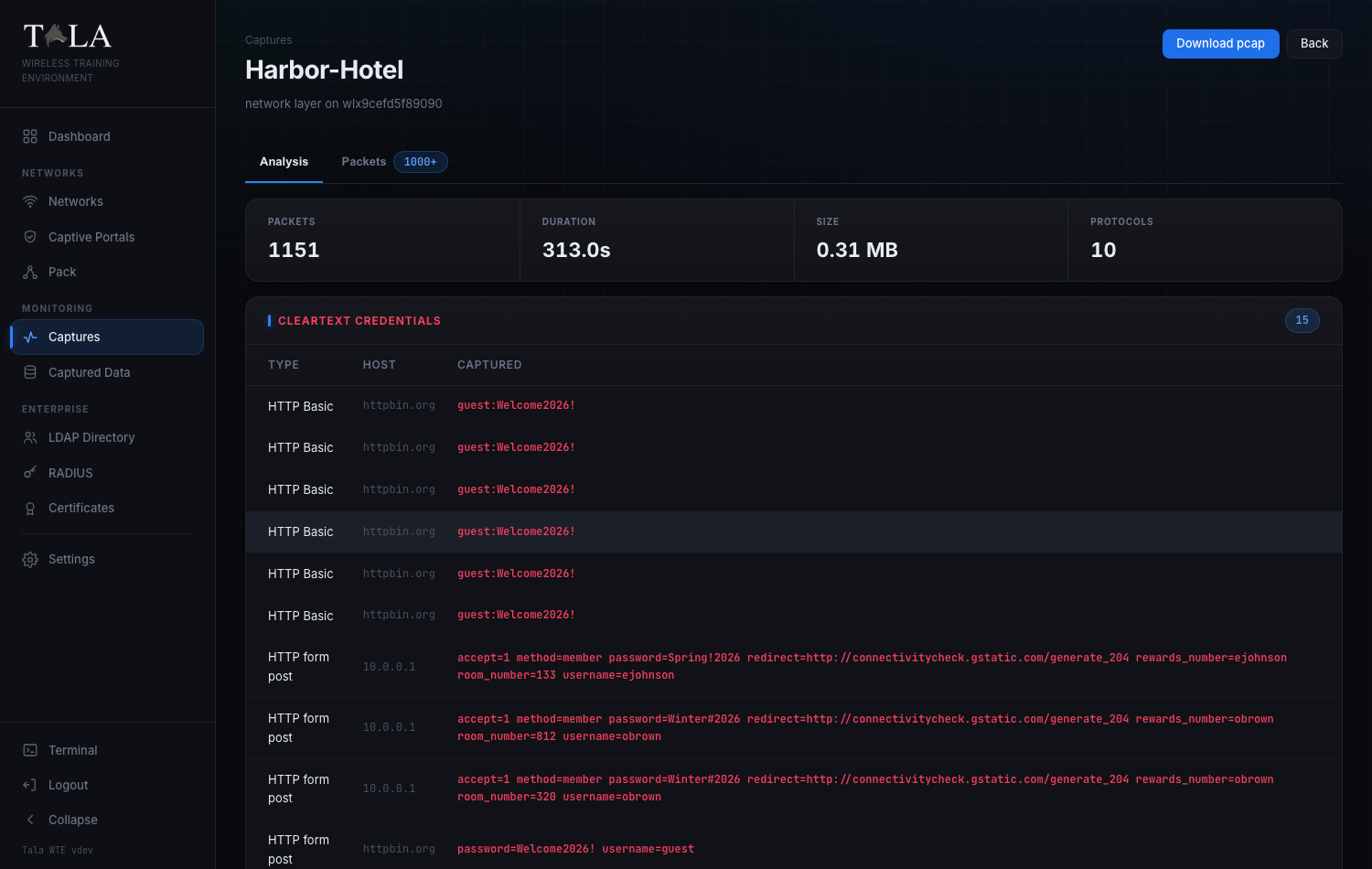 Traffic captured from an open network, read back in the console. The logins in red were sent in the clear. On the range they come from generated test clients, not real people, but the lesson is the real one: anything not encrypted is visible on the wire.
Turn on WPS and watch a strong passphrase fall through the PIN. Switch the same network to WPA3 and watch the same capture come up empty. It is the fastest way to turn “these settings matter” into something you have actually seen.
It is free for personal use, and the documentation, a full plain-language field manual, is at tala-wte.vtemlabs.com. It is a lab tool for learning, not something to point at your own home network.
The short version
Change the admin login. Use WPA3 or WPA2-AES with a long passphrase. Kill WPS. Put guests and smart devices on their own network. Treat public Wi-Fi like a party line. The secret network name and the scary ads are not where the security lives.